
To set up IPTV on Android TV, install a player such as TiviMate, IPTV Smarters Pro or XCIPTV straight from the Google Play Store, then sign in with the Xtream Codes details or M3U link from your IPTV Canada provider. Your channels and TV guide load within a few minutes. It works the same way on plain Android TV, Google TV and the NVIDIA Shield, because all three share the same Play Store and apps.
Unlike a Fire Stick, there’s usually nothing to sideload: all three players below are listed on Google Play. If your TV runs something else, our IPTV setup guide covers every device.
1. Android TV, Google TV and NVIDIA Shield: What’s Different
Android TV is the system underneath; Google TV is a newer home screen on top of it, and the NVIDIA Shield is Android TV on much faster hardware. That’s why the IPTV setup is the same on all three: Sony, TCL, Hisense and Philips Android TVs, Google TV streamers and the Shield all install the same apps from the same store. Google TV mostly changes where the Play Store sits (under Apps) and how the home screen recommends content; it doesn’t change how an IPTV app runs.
Whichever you have, the app is only the player. The channels come from your IPTV subscription, which the app connects to with your login details.
2. Get Your TV Ready
An Android TV is ready for IPTV out of the box once it’s signed in to Google. The things that trip people up are an out-of-date system, a box that’s nearly full and a login typed with a remote.
- A Google account on the TV. The Play Store needs one. If the TV was set up without it, add one under Settings, Accounts & sign-in.
- Current software. Check for a system update in Settings and restart once; older firmware is the usual cause of an app that installs but won’t open.
- Room for the app. Cheap Android TV boxes and older TVs fill up fast. Keep about 500 MB free; uninstall apps you never open.
- Your details and a connection. Have the Xtream Codes details or M3U link from your welcome email on your phone. Testing first? An IPTV free trial sends the same details. Plan on 25 Mbps for HD and 50 Mbps for 4K, ideally over Ethernet; our internet speed guide explains how to test it.
3. Choose Your App
All three are free to download from Google Play and take the same login details, so you can try one and switch later without changing anything else.
| App | Cost | Best for |
|---|---|---|
| TiviMate | Free, with an optional Premium upgrade | The clearest TV guide; most people |
| IPTV Smarters Pro | Free, with upgrades | A familiar layout that’s the same on phones and other TVs |
| XCIPTV | Free with ads | Movies and series as well as live TV |
Not sure? Start with TiviMate. For more players and how they compare, see our best free IPTV apps.
4. Option 1: TiviMate
Step 1: Install TiviMate
Open the Google Play Store from the home screen, search for TiviMate and select Install. From a phone or computer you can also send it to your TV from TiviMate on Google Play.
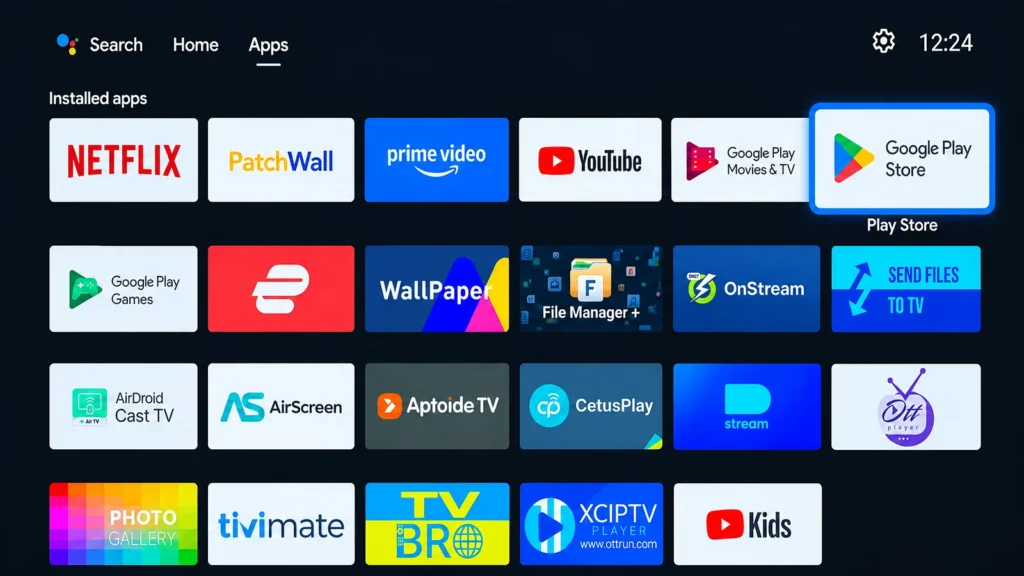
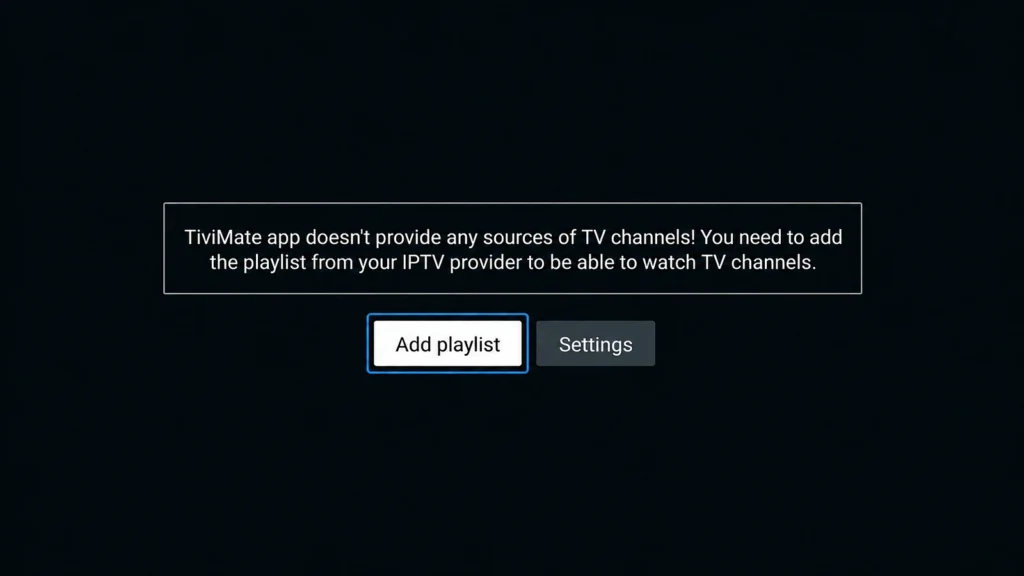
Step 2: Add a playlist
Open TiviMate and select Add playlist.
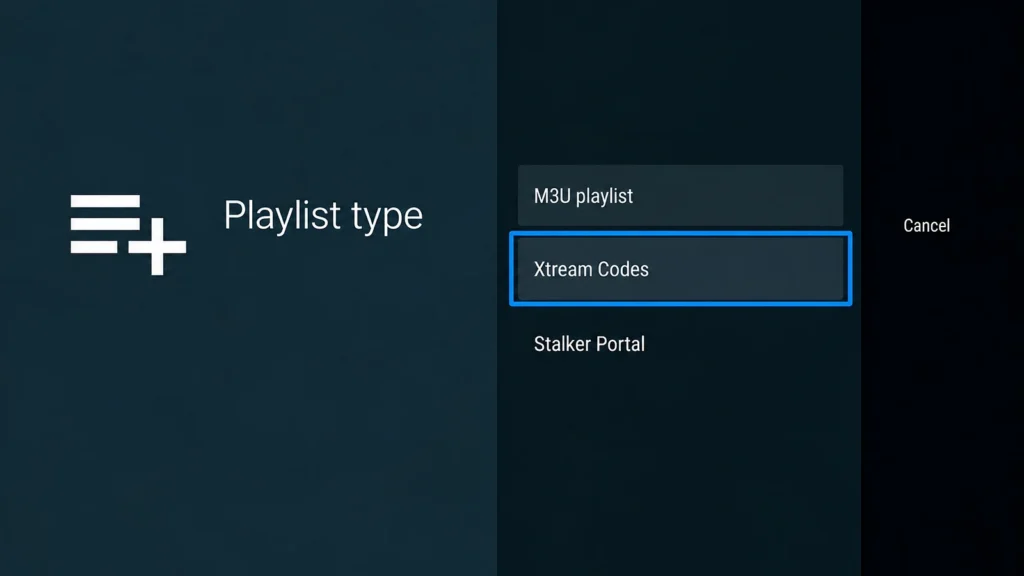
Step 3: Choose the login type
Choose Xtream Codes (recommended) or M3U playlist.
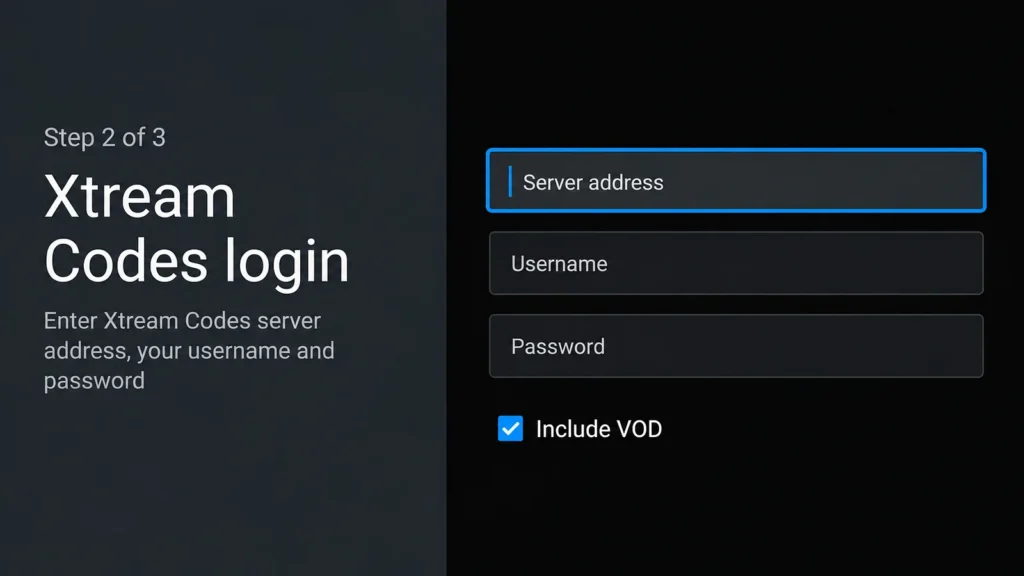
Step 4: Enter your details
Enter your server URL, username and password exactly as your welcome email shows them, then select Next.
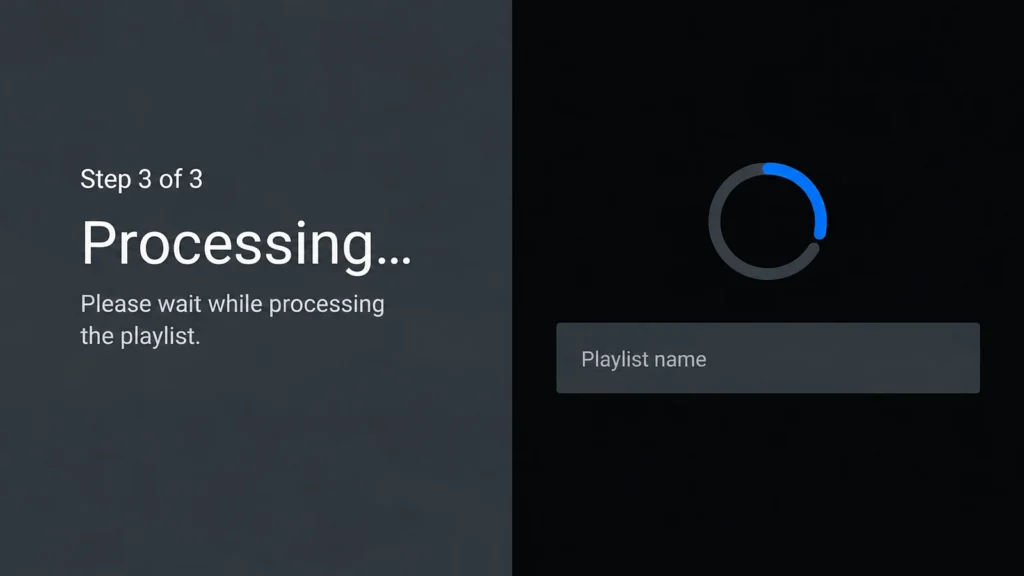
Step 5: Let the channels load
Wait while TiviMate downloads your channel list, then select Next and Done.
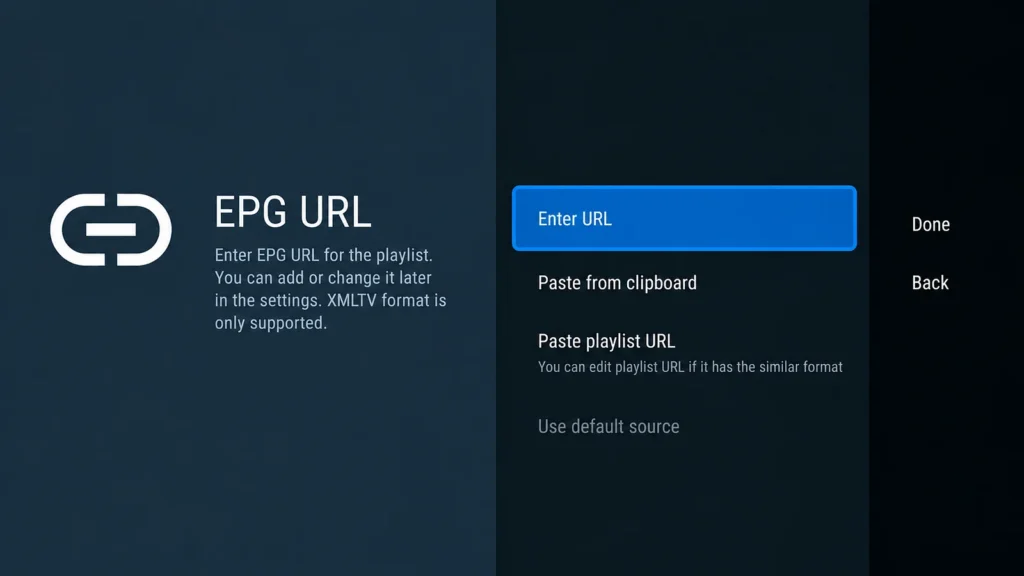
Step 6: Add the TV guide (M3U only)
Using an M3U link? Paste the EPG link from your email in the settings and set it to refresh every 24 hours. Xtream Codes logins bring the guide with them.
Live TV and the guide work in the free version; TiviMate Premium adds extras like more playlists and recording. Our TiviMate guide covers its settings in depth.
5. Option 2: IPTV Smarters Pro
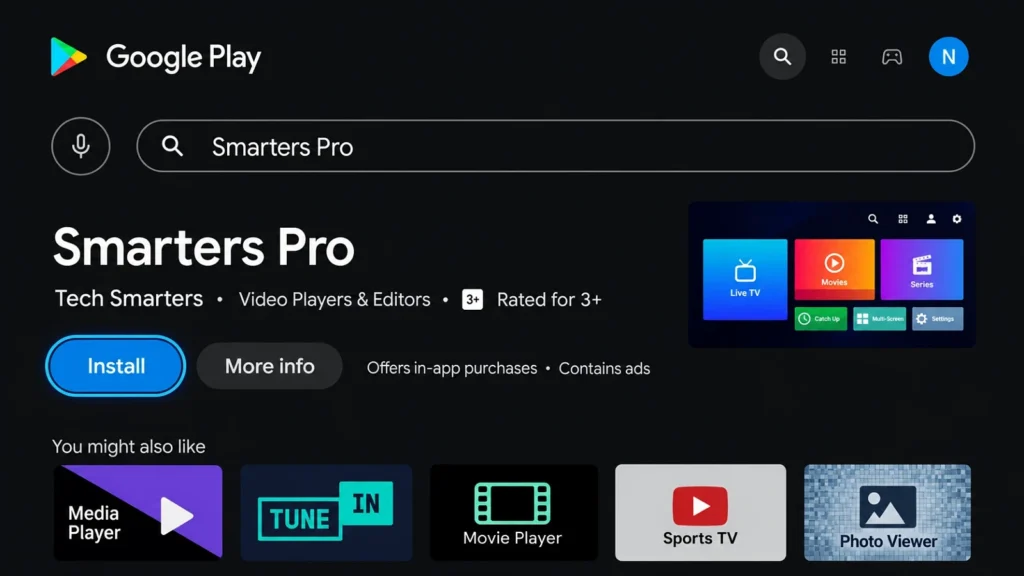
On Google Play the app is now called Smarters Pro, by Tech Smarters. Check the publisher before you install; several lookalike apps use similar names.
Step 1: Install Smarters Pro
Open the Google Play Store, search for Smarters Pro, pick the one by Tech Smarters and select Install. Here it is on Google Play.
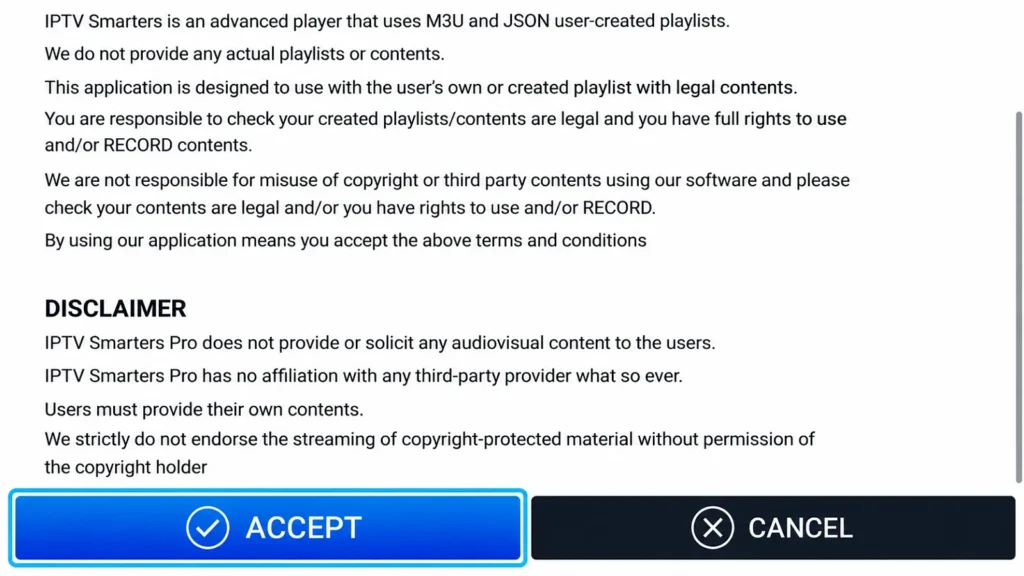
Step 2: Accept the terms
Open the app and accept the terms of use.
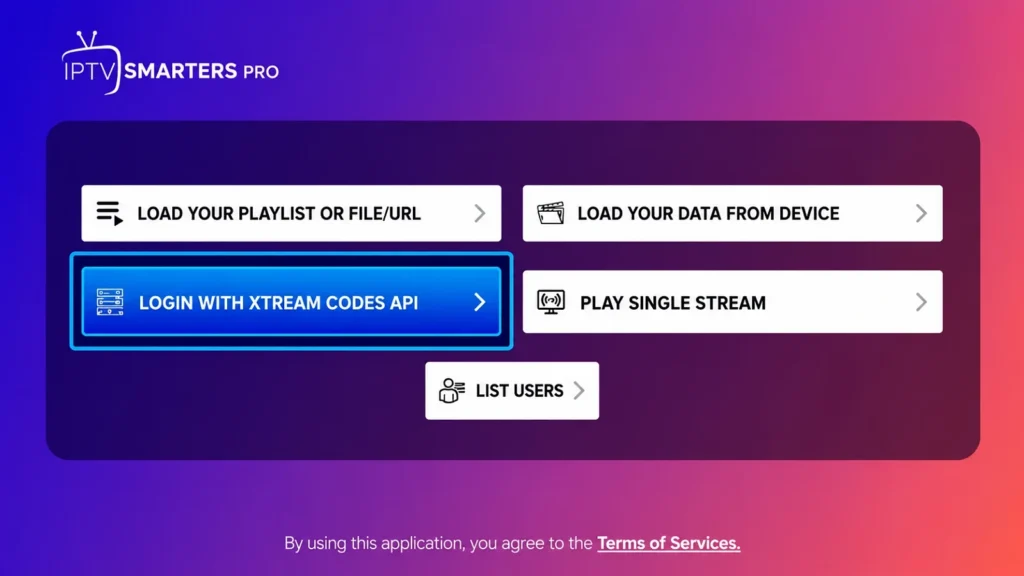
Step 3: Choose the login type
Choose Login with Xtream Codes API, or Load Your Playlist or File/URL for an M3U link.
Step 4: Enter your details
Enter your username, password and server URL exactly as they appear in your welcome email. With an M3U link, paste the whole link instead.
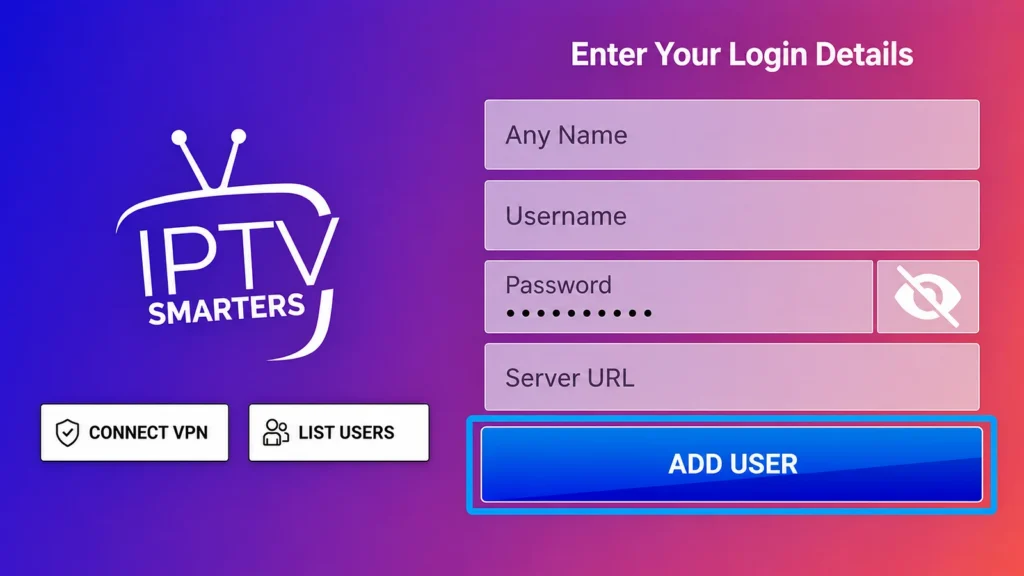
Step 5: Add the user and wait
Select Add User and wait while Live TV, Movies and Series load.
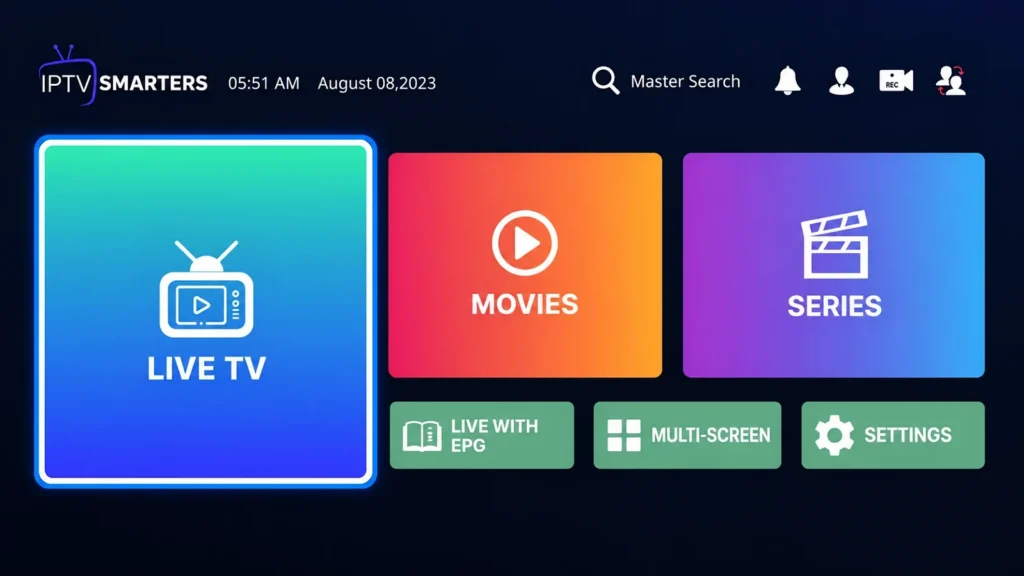
Step 6: Turn on hardware acceleration
For smoother 4K, open Settings from the home screen and turn on Hardware Acceleration in the player settings.
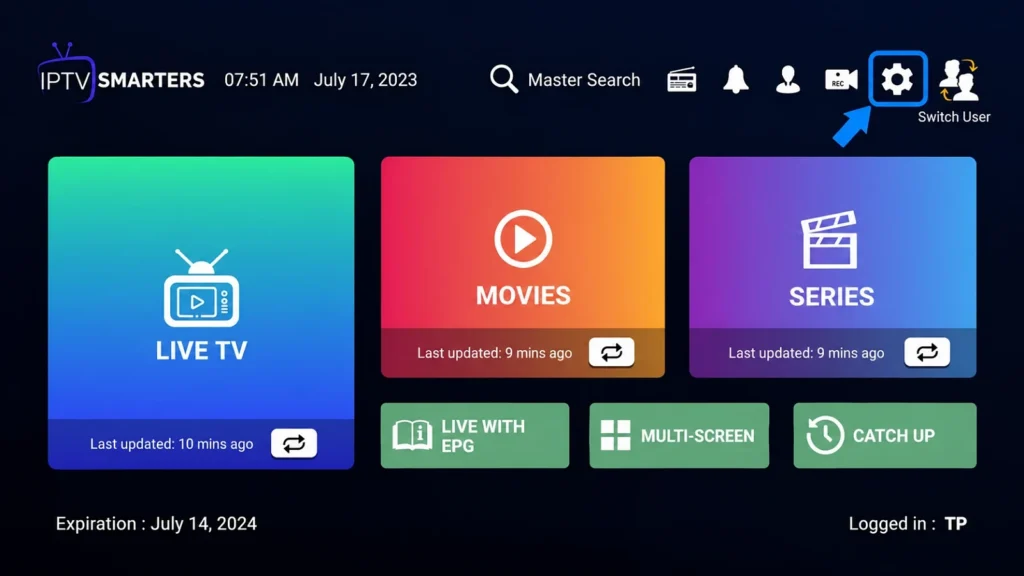
The same app and login screen are on phones, Apple TV and smart TVs; our IPTV Smarters Pro guide covers it everywhere.
6. Option 3: XCIPTV
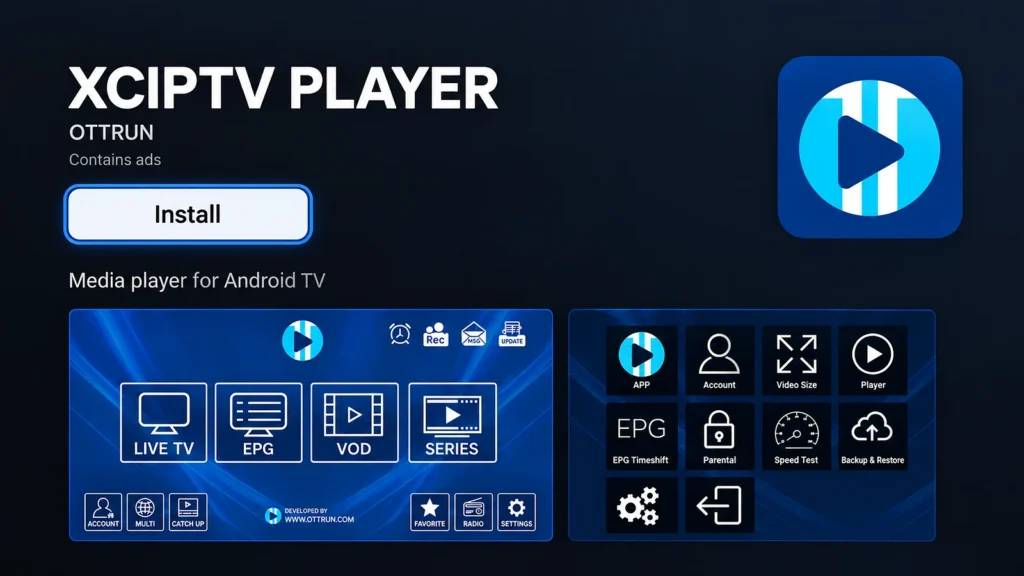
XCIPTV puts films and series on the home screen next to live TV, which suits households that watch more on-demand than live channels. It’s free with ads.
Step 1: Install XCIPTV
Open the Google Play Store, search for XCIPTV and install XCIPTV PLAYER by OTTRUN. Here it is on Google Play.
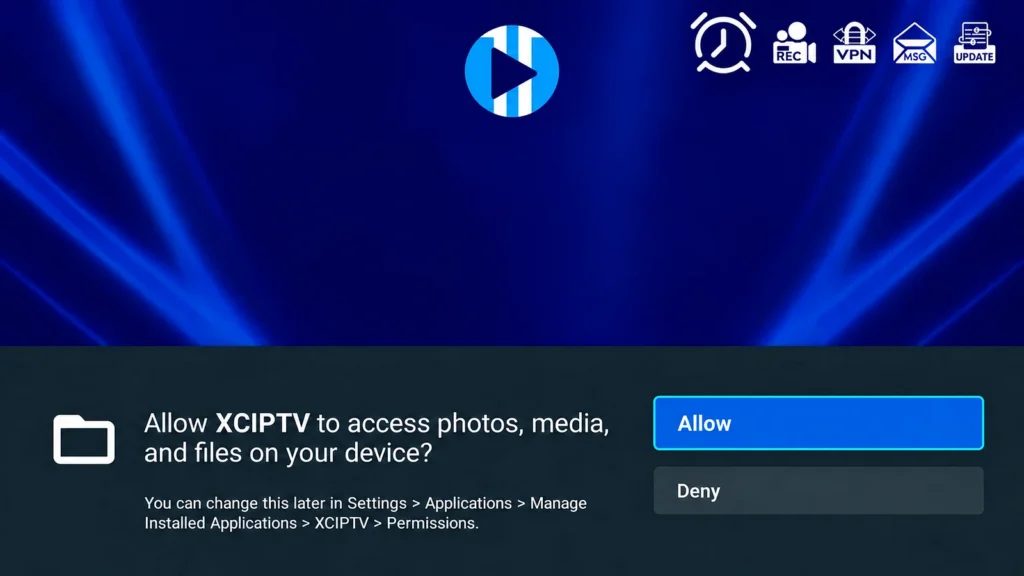
Step 2: Allow access
Open XCIPTV and allow access if Android asks.
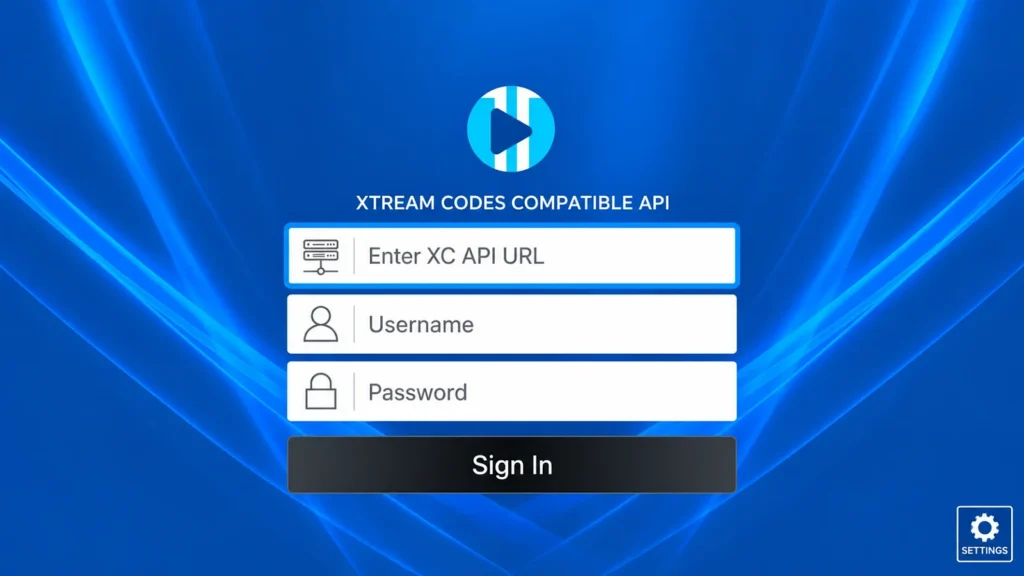
Step 3: Sign in
Enter your server URL in the XC API URL field, then your username and password, and select Sign In.
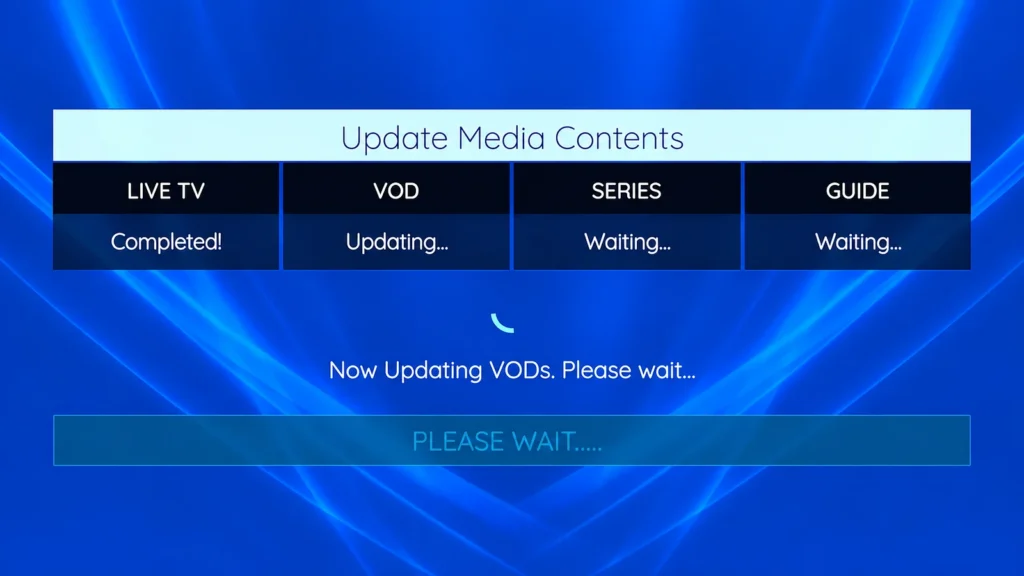
Step 4: Let it load
Wait while XCIPTV loads live TV, movies, series and the guide.
Step 5: Start watching
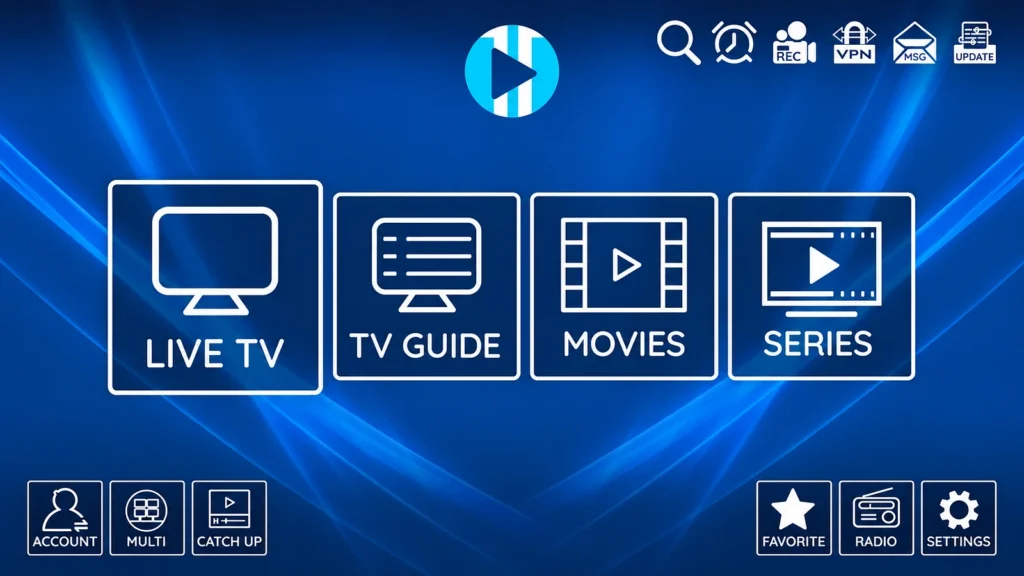
Live TV, TV Guide, Movies and Series are on the home screen. Pick one and start watching.
7. If an App Isn’t in Your Play Store
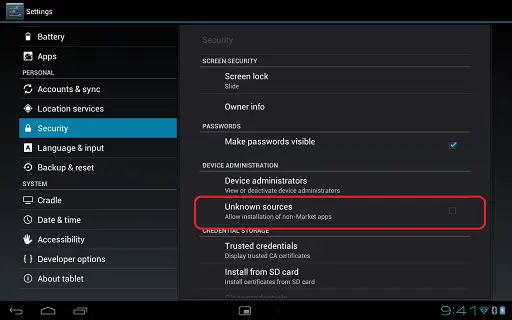
Availability varies by country and by device, so a player listed on one TV can be missing on another. Before sideloading, try another of the three apps above: they all take the same login. If you do sideload, allow it only for the one app you’ll install with (for example a file manager), under Settings, Device Preferences, Security & restrictions, Unknown sources, and only install files from the app’s official website.
Random APK sites are how most Android TV boxes end up with malware. If you want an extra layer, CIRA Canadian Shield, a free DNS service from the organization that runs Canada’s .ca domains, blocks known malicious sites for the whole home network.
8. Guide and Playback Settings Worth Changing
- Guide refresh. Set the EPG to refresh every 24 hours, and check the TV’s time zone matches yours, or every programme will show at the wrong time. Our EPG guide covers missing listings.
- Hardware decoding. In the player settings, use hardware acceleration (or the hardware decoder); software decoding is a common cause of stutter on cheaper boxes.
- Buffer size. Leave it at the default unless channels pause every few minutes, then raise it one step.
- Favourites and a PIN. Mark the channels you watch most, and lock adult categories before children use the remote; see our parental control guide.
9. Notes for Google TV and NVIDIA Shield
Google TV
The Play Store is under the Apps tab rather than on the home row, and the remote’s Google Assistant button can search for the player by name instead of typing. Once installed, most of your browsing happens inside the IPTV app, since the Google TV home screen recommends content from mainstream streaming apps.
NVIDIA Shield TV
The NVIDIA Shield runs the same apps with more headroom, so 4K channels and channel switching stay quick even with a large playlist. Its AI upscaling can make HD channels look sharper on a 4K TV: NVIDIA’s AI upscaling page shows how to switch it on, under Settings, AI upscaling, “AI-Enhanced”.
10. Testing and Troubleshooting
Test a handful of channels from different categories, and once in the evening between 7 and 10 p.m., when networks are busiest. Most problems show up then or not at all.
| Problem | Likely cause | Fix |
|---|---|---|
| App installs but won’t open | Old system software or a full box | Update the system, free up space, restart |
| Empty channel list | Typo in the login, or an expired plan | Re-enter the details; check your renewal date |
| Buffering on busy evenings | Wi-Fi or a crowded network | Use Ethernet; pick the HD version of the channel; see our buffering and outage guide |
| Picture stutters on 4K channels | Software decoding | Turn on hardware acceleration in the player |
| Guide empty or at the wrong times | Missing EPG link, or time zone | Add the XMLTV link; set the TV’s time zone |
Some Canadian providers manage video traffic at peak times; our VPN guide explains when a VPN on the TV is worth it.
11. Legal Basics in Canada
Android TV and the apps in this guide are legal, ordinary software. What makes IPTV legal is the service: a licensed provider holds the rights to what it streams, and an unlicensed one doesn’t. Cheap Android boxes sold with an IPTV app already installed and “thousands of channels” promised for a few dollars are the classic sign of an unlicensed service, and those are the ones that vanish mid-season. Our guide on whether IPTV is legal in Canada covers what to check.
Frequently Asked Questions
Is Google TV the same as Android TV for IPTV?
Yes. Google TV runs on Android TV and uses the same Play Store, so the apps and setup steps are identical. Only the home screen looks different.
Which IPTV app is best on Android TV?
TiviMate for most people, thanks to its TV guide. IPTV Smarters Pro suits anyone who already uses it on a phone, and XCIPTV puts movies and series up front.
Do I need to sideload anything on Android TV?
Usually not. TiviMate, Smarters Pro and XCIPTV are all on Google Play. Sideload only if an app is missing in your country, and only from its official website.
Why is the NVIDIA Shield popular for IPTV?
It runs the same apps on faster hardware, so large playlists and 4K channels stay smooth, and its AI upscaling sharpens HD channels on a 4K TV.
Why won’t my channels load after signing in?
Almost always a typo in the server URL, username or password, or an expired plan. Re-enter them exactly as your email shows them, without spaces.
What internet speed does Android TV need for IPTV?
About 25 Mbps for HD and 50 Mbps for 4K, per stream. Ethernet is far steadier than Wi-Fi for a TV that doesn’t move.
Can I use one subscription on several Android TVs?
Yes, up to the number of connections in your plan, since each TV playing at the same time uses one. Our guide on watching IPTV on multiple devices explains the limits.
Why is my TV guide empty?
With an M3U link, the guide needs its own EPG (XMLTV) link. Paste it in the app’s EPG settings; Xtream Codes logins fill the guide by themselves.
Conclusion
Android TV is about the friendliest place to run IPTV: the three main players are a Play Store search away, there’s nothing to sideload, and whatever you set up on one Android TV works the same on the next, whether it’s a Sony set, a Google TV streamer or a Shield. TiviMate is the one to start with for its guide; Smarters Pro and XCIPTV are there if you prefer a different layout.
The two settings that matter most on this platform are easy to miss: turn on hardware decoding in the player, and make sure the TV’s time zone is right so the guide lines up. Get those two right, wire the TV if you can, and Android TV behaves like a cable box with a much bigger channel list.