
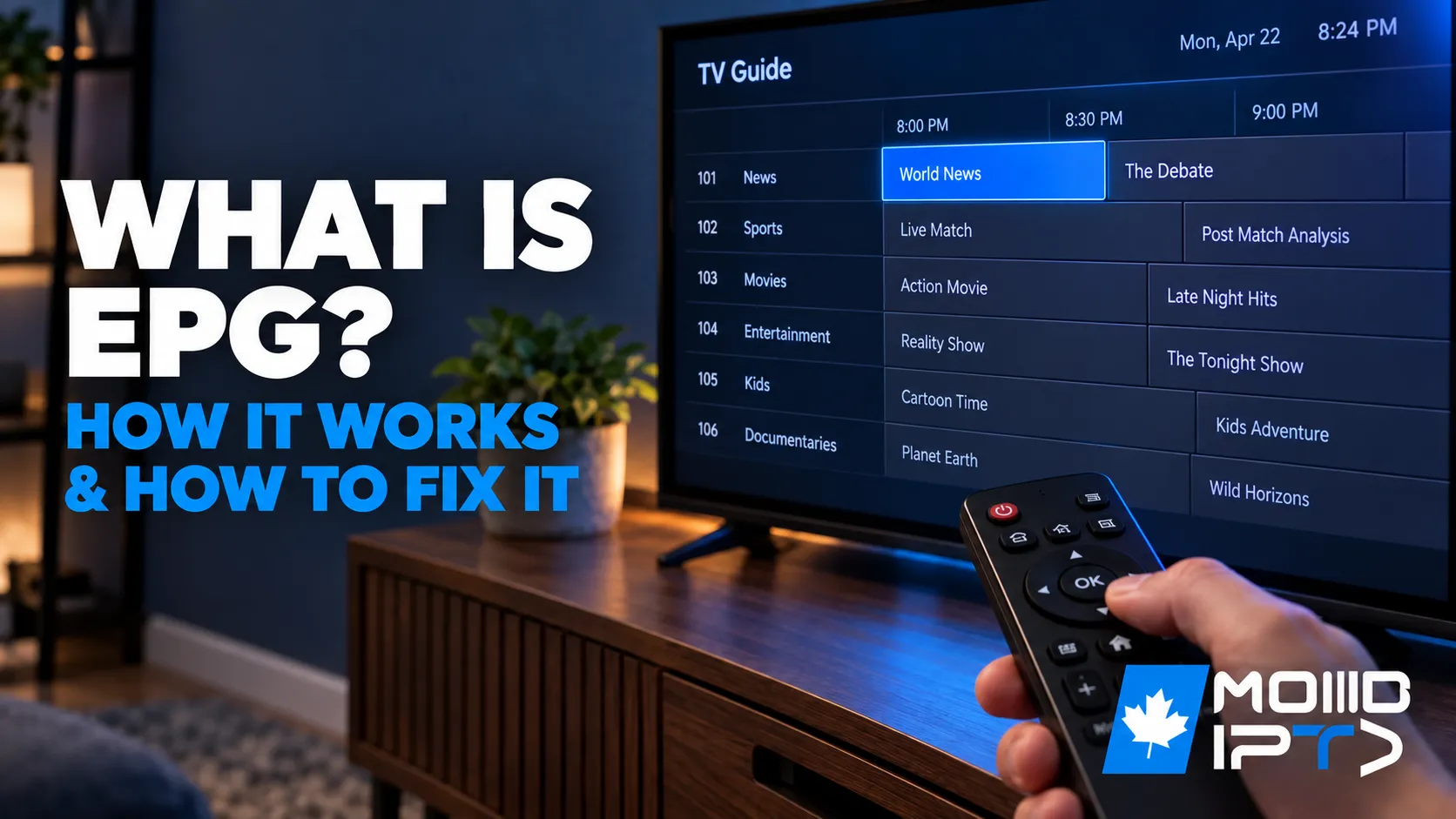
EPG (Electronic Program Guide) on IPTV is the on-screen TV guide that shows what’s playing now and next on each channel, and it comes from a separate XMLTV data file that your app downloads alongside your channel playlist. When the guide is empty, shows the wrong times, or skips some channels, the cause is almost always one of four things: the EPG link was never added, the channels don’t match the guide data, the time zone is off, or the app’s cached guide is stale. This guide explains how EPG works, how to add it in the most common apps, and how to fix each of those problems. The quality of the guide data depends on your IPTV provider, so it’s worth knowing what a good one looks like.
1. How EPG on IPTV Actually Works
Your IPTV app builds the guide by matching two separate things: the channel list from your playlist, and a schedule file in XMLTV format. The playlist tells the app which channels exist and where to stream them from. The XMLTV file lists programmes (titles, start and end times, descriptions, ratings) for each channel over the next few days.
The two are joined by an ID. Every channel in an M3U playlist carries a tvg-id tag, and every channel in the XMLTV file has a matching id. When the two IDs match, that channel gets a schedule. When they don’t, the channel still plays but its guide row stays blank.
That one detail explains most EPG problems. The stream and the guide travel separately, so channels can work perfectly while the guide is broken, and the fix is almost never in the stream itself.
Most provider guides cover three to seven days ahead. Catch-up (replaying shows from the past few days) and scheduled recording both rely on the same EPG data, so a broken guide usually breaks those features too.
2. What You Need for a Working Guide
You need four things: a working playlist, an EPG source, an app that reads XMLTV, and the correct time zone on your device.
- An active playlist, either Xtream Codes credentials or an M3U link.
- An EPG source. With Xtream Codes this is usually automatic. With M3U, you may need a separate XMLTV link from your provider. Our guide on where to get your IPTV URL shows where providers publish both.
- A player that supports XMLTV. TiviMate, IPTV Smarters Pro, XCIPTV, Kodi’s PVR IPTV Simple Client and most set-top box portals all do.
- The right time zone and clock on the device itself, set automatically from the network if the option exists.
- Some free storage. A full guide for a large channel list can run to tens of megabytes, and low-memory streaming sticks struggle with it.
No subscription to test with yet? A free IPTV trial includes the guide, so you can check how complete it is before paying.
3. Xtream Codes vs M3U: Which One Loads the Guide for You
Xtream Codes is the easier route, because the app pulls the guide straight from your provider’s server using the same login, with nothing extra to paste.
| Login type | Where the guide comes from | What you do |
| Xtream Codes (server, username, password) | The provider’s server, at an address built from your login (http://server:port/xmltv.php?username=…&password=…) | Usually nothing. Most apps load it automatically after login. |
| M3U with an EPG link in the header | The url-tvg address written into the first line of the playlist | Usually nothing. Apps that read the header load it automatically. |
| Plain M3U, no EPG link | A separate XMLTV URL your provider sends | Add it by hand in the app’s EPG settings (section 4). |
| MAG, Formuler and other portal boxes | The provider’s portal | Nothing. The portal delivers the guide with the channels. |
If you have both options, use Xtream Codes. It keeps the guide tied to your account, so it updates on its own when the provider changes servers.
4. How to Add an EPG URL in Popular IPTV Apps
Open the app’s settings, find the EPG or TV Guide section, paste your XMLTV link, and trigger an update. The exact menus differ by app:
- TiviMate: go to Settings > EPG > Add EPG source, paste the URL, then select Update EPG. The time-shift option for correcting offset times sits in the same EPG settings. Our TiviMate guide covers the full setup.
- IPTV Smarters Pro: with an Xtream login the guide loads on its own. If it’s empty, use the EPG refresh option on the home screen or in Live TV (labelled Install EPG or Refresh EPG depending on the version), and check Settings for the EPG time-shift option. See our Smarters login and setup guide.
- XCIPTV: the guide comes through the Xtream login. Our XCIPTV setup guide shows where the EPG refresh sits.
- Kodi (PVR IPTV Simple Client): open the add-on’s settings, go to the EPG tab, set the location to Remote path, paste the XMLTV URL, then restart Kodi. The EPG time shift is on the same tab. Full steps are in our Kodi IPTV guide.
- MAG and Formuler boxes: no setup needed; the guide arrives through the portal. If it’s missing, reload the portal. See our Formuler setup guide or MAG box guide.
Paste the URL exactly as your provider sent it, with no space at either end. A link ending in .xml.gz is compressed, which is normal and loads faster. Every app above can read it.
5. Why Some Channels Have a Guide and Others Don’t
Channels with a blank guide row are almost always channels whose tvg-id doesn’t match any entry in the XMLTV file. That’s a data problem on the provider’s side, not something wrong with your app or device.
Common reasons:
- The channel isn’t in the guide data at all. Smaller international, regional or event channels often have no schedule source, especially 24/7 and pay-per-view channels.
- IDs changed. When a provider updates its channel list, the guide can lag a day or two behind.
- You mixed sources. Adding a third-party XMLTV file to a provider’s playlist rarely lines up, because the two use different IDs.
Some apps let you match a channel to a guide entry by hand. In TiviMate, long-press the channel and look for the option to change its EPG source. That works for a few channels but doesn’t scale. If whole categories are blank, tell your provider’s support; a good provider fixes mapping on their end.
6. How Often the Guide Should Update
Set the guide to refresh once every 24 hours. That keeps the next few days of listings current without slowing the app down every time you open it.
- Automatic updates: most apps refresh on launch or on a schedule. In TiviMate the interval is under Settings > EPG; other apps usually refresh when you reopen Live TV.
- Manual refresh: force an update after you change playlists, after the clocks change, or when listings look out of date.
- Keep one source per playlist. Stacking several EPG links for the same channels makes updates slower and often causes conflicting listings.
- Watch storage on small devices. A big guide on a Fire Stick or budget Android box can slow menus or crash the app. Our guide on clearing the IPTV cache frees that space safely.
7. Fixing an Empty or Missing EPG Guide
The fastest fix for an empty guide is to force an EPG update and wait a full minute before checking again, because a large guide file takes longer to load than the channel list. If that doesn’t work, go through these checks in order, from most to least likely:
- Confirm the guide source is actually set. With M3U, open the app’s EPG settings and check a URL is there. Many empty guides are simply a link that was never added.
- Test the EPG link in a browser. Paste it into a computer browser. If it downloads a file or shows a wall of text, the link works. If it errors, the link is wrong or your subscription has lapsed.
- Check your subscription is active. An expired account often still shows cached channels but returns no guide.
- Clear the app’s EPG data and reload. Stale or half-downloaded guide data is common after an interrupted update. Clear the cache or EPG data in the app, then update again.
- Restart the app, then the device. This clears a stuck download.
- Check the provider’s status. If the guide vanished overnight for every channel, the problem may be on the provider’s side. See is IPTV down today.
- Re-enter the login. If you changed servers or the provider changed your URL, the guide address may have changed too. Our guide on changing the URL on an IPTV box covers that.
| Symptom | Most likely cause | Fix |
| Whole guide empty | No EPG link, or it hasn’t loaded yet | Add or check the link, force an update, wait a minute |
| Guide empty after it used to work | Expired subscription, stale cache, or provider outage | Check account, clear EPG data, check status |
| Some channels blank | ID mismatch in the guide data | Report to provider; match by hand if the app allows |
| Times off by one or more hours | Device time zone or time-shift setting | See section 8 |
| Guide loads but menus freeze | Guide file too large for the device | Clear cache, keep one EPG source, use a stronger device |
| Catch-up or recording missing | Depends on EPG data | Fix the guide first; catch-up follows |
8. Fixing Wrong Times in the Guide
When listings are shifted by a whole number of hours, the device time zone is almost always wrong, so fix the clock first and only use the app’s time-shift setting if the offset remains.
- Set the device time zone correctly, ideally with automatic date and time from the network. This one step fixes most cases.
- Force an EPG update after changing the time zone, since some apps only recalculate on refresh.
- Use the app’s EPG time shift only if listings are still off. Set it to the number of hours the guide is out, forward or back.
Canada adds a few quirks worth knowing:
- Six time zones. Guide data usually comes in UTC or a single reference zone, and your app converts it. If you moved or travelled, check the device didn’t keep the old zone.
- Newfoundland runs half an hour off the other zones. Some apps only offer whole-hour time shifts, so a half-hour error in St. John’s has to be fixed through the device time zone, not the app.
- Most of Saskatchewan doesn’t change its clocks. If listings jump by an hour in March or November and the rest of the country looks fine, a manually set zone or time shift is the usual reason. Switch back to automatic.
- Clock changes (second Sunday of March, first Sunday of November) are the most common time for guides to drift. A manual EPG refresh the day after usually fixes it.
9. Catch-Up, Recording and Parental Controls All Depend on EPG
A working guide is what makes the extra features in your IPTV app usable, so fixing the EPG often fixes those too.
- Catch-up TV uses guide entries to know where each past programme starts and ends. No guide means no catch-up list, even on channels that support it.
- Recording and reminders are scheduled from guide entries. Our guide on recording live TV with IPTV covers this.
- Parental controls in some apps use the ratings in the guide data. Our parental control guide explains the PIN-based options that work without it.
- Search in most players only finds programmes the guide knows about.
Guide problems can also look like playback problems. If the guide shows the right show but the stream stutters, that’s a connection issue, and our IPTV buffering guide is the place to start.
10. EPG Quality, Third-Party Guides and Legal Basics in Canada
In Canada, IPTV itself is legal when the provider holds the rights to the channels it carries, and a proper guide is one of the easiest signs of a serious provider. A licensed service maintains its own guide data, keeps channel IDs matched, and fixes gaps when you report them.
Third-party guide tools such as WebGrab+Plus or public XMLTV lists do exist, and technical users sometimes build their own guides with them. They’re rarely worth it for most viewers. The channel IDs seldom match your provider’s playlist, the sources change or disappear without notice, and you end up maintaining the guide yourself. If your provider’s guide is patchy across whole categories, that says more about the provider than the guide, and it’s a fair reason to test another one.
When you compare services, check the guide during a trial the same way you’d check picture quality: does every main channel have listings, do the times match your local zone, and does catch-up work. Our guide on which channels you actually get with IPTV covers the rest of what to check.
Frequently Asked Questions
What is EPG on IPTV?
EPG is the TV guide in your IPTV app, showing what’s on now and next on each channel. It’s loaded from a separate XMLTV file that the app matches to your channel list.
Why is my IPTV EPG not showing?
Usually because no EPG link was added (common with M3U playlists), the guide hasn’t finished loading, or the cached guide data is stale. Force an EPG update, wait a minute, and check the EPG URL works in a browser.
Does an M3U playlist include the EPG?
Sometimes. If the first line of the playlist includes a url-tvg address, most apps load the guide automatically. If not, you need to add the XMLTV link your provider gave you by hand.
Do I need an EPG URL with Xtream Codes?
No, in most apps. The guide is pulled from the provider’s server using your Xtream login, so nothing extra needs pasting.
Why are the times in my IPTV guide wrong?
The device time zone is almost always the cause. Set date and time to automatic, force an EPG refresh, and only use the app’s time-shift setting if the listings are still off.
What format is IPTV EPG?
XMLTV, an XML format that lists channels and programmes with start and end times. Files often end in .xml or the compressed .xml.gz, and all major IPTV apps read both.
How often should I update the EPG?
Once every 24 hours is enough. Refresh by hand after changing playlists, after the clocks change, or when listings look out of date.
Why do only some channels show guide information?
Those channels’ IDs don’t match anything in the guide data. It’s a provider-side mapping issue, so report it to support; some apps let you match individual channels by hand.
Conclusion
EPG on IPTV works by matching your channel list to a separate XMLTV schedule, so a broken guide almost never means a broken stream. Most problems come down to four fixes: make sure an EPG source is set (automatic with Xtream Codes, sometimes manual with M3U), force an update and give it a minute, set the device time zone correctly before touching the app’s time shift, and clear stale guide data when listings stop updating. Blank rows on individual channels are a provider mapping issue rather than something to fix on your end. When you’re choosing a service, check the guide during the trial: complete listings with the right local times are a good sign the rest of the service is looked after too.