How to Configure IPTV With XCIPTV Player ?
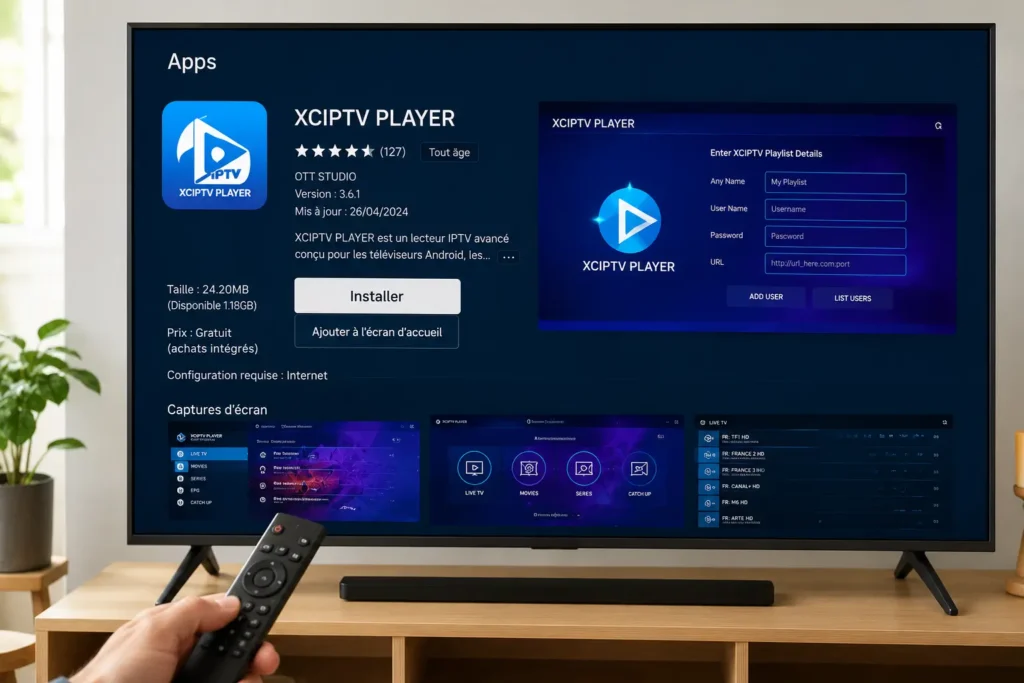
To configure IPTV with XCIPTV Player, start by downloading and installing XCIPTV from the official website or trusted app store, launch the app and accept the user agreement, choose your preferred login method (Xtream Codes, M3U URL, or single stream), enter your IPTV provider’s credentials carefully, save the configuration and let the channel list populate, then test channels and customize the player settings to match your preferences.
The whole process takes under 10 minutes on most devices. A reliable IPTV Subscription from a trusted Canadian provider gives you stable Xtream Codes credentials, a working EPG link, and full setup support to make XCIPTV configuration smooth and stress-free.
This guide walks you through the configuration process step by step, from initial download to your first channel test.
Step 1 — Download and Install XCIPTV Player
Start with a clean install from a trusted source:
Open the Google Play Store on your Android TV, Fire TV, or mobile device
Search for XCIPTV Player by Sandra IPTV Player
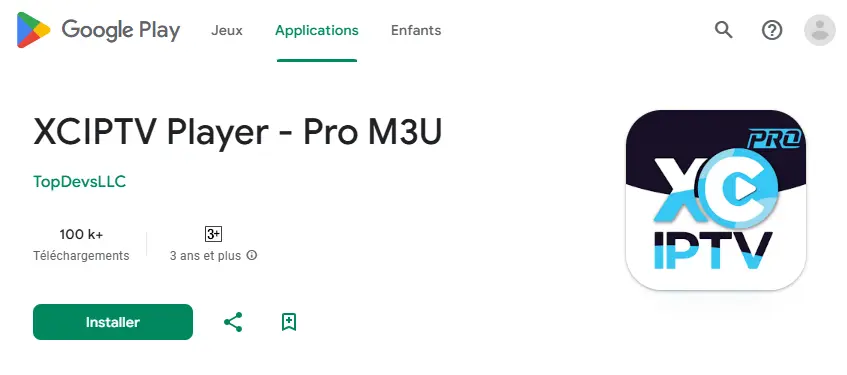
Click Install and wait for the download to complete
For Fire TV, you may need to sideload the APK using the Downloader app,
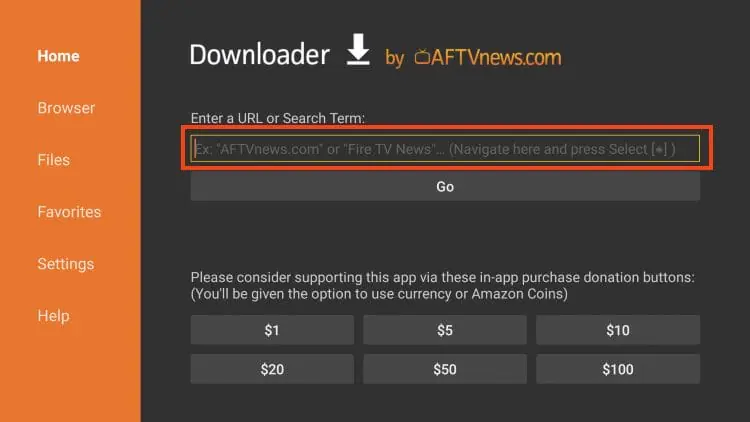
Always download from official sources to avoid modified or malicious versions
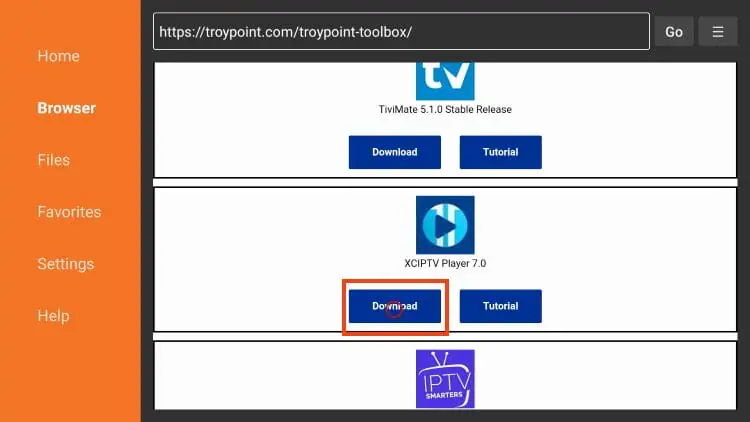
Launch the app once the installation finishes
XCIPTV is free, lightweight, and runs smoothly on devices with as little as 1 GB of RAM. Avoid downloading APK files from random websites — modified versions of popular IPTV players are a known vector for malware on Android-based devices.
Step 2 — Launch the App and Accept the User Agreement
Before getting to the configuration, complete the basic startup:
Open XCIPTV Player from your app drawer or home screen
Read the End User License Agreement (EULA) carefully
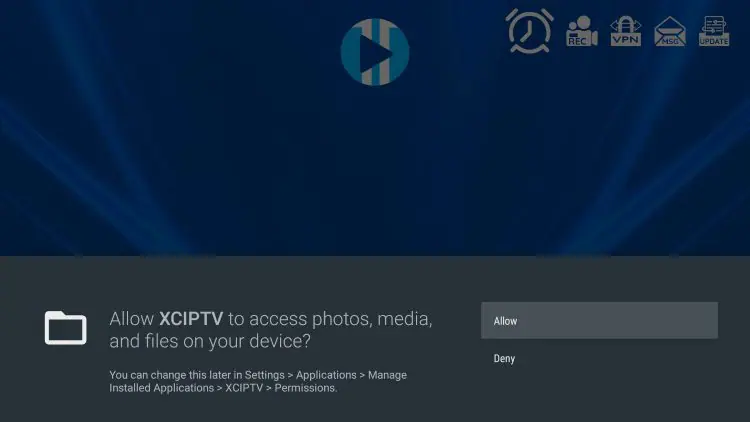
Tap Accept to continue
Allow the app to access local storage if prompted
Wait for the welcome screen to load
Choose your preferred language from the menu
This first launch is also where the app applies any default settings, including hardware acceleration and player engine. Don’t skip the EULA — knowing what permissions you’re granting matters, especially on devices that handle credentials and account data.
Step 3 — Choose Your Preferred Login Method
XCIPTV supports three login options, each suited to different IPTV setups:
- Xtream Codes API — recommended for most users, with auto-update support
- M3U URL — universal compatibility, works with virtually any IPTV provider
- Single Stream — for testing one channel at a time
- Local M3U file — if your provider supplied a downloadable .m3u file
- Choose based on what credentials your IPTV provider gave you
Xtream Codes is the strongest choice when available because it auto-reconnects when servers rotate and supports richer EPG and VOD integration. M3U is the universal fallback when Xtream Codes isn’t supported.
Step 4 — Enter Your IPTV Provider’s Credentials
Now connect XCIPTV to your IPTV service:
- For Xtream Codes: enter the server URL, username, and password separately
- For M3U URL: paste the playlist URL exactly as your provider gave it
Verify the protocol (http:// vs https://) and port number (often :8080)
Add a recognizable name for the playlist (e.g., “My IPTV”)
Tap Add User or Save to confirm
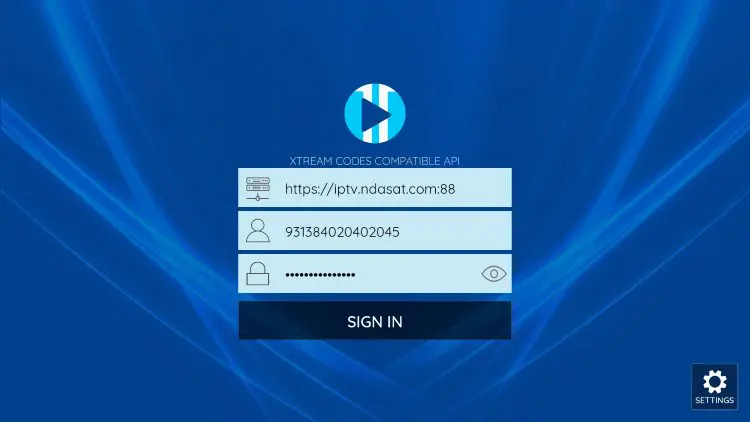
Wait for the app to validate the credentials
A typo in the URL is the most common reason for setup failure — even one wrong character will block the channel list from loading. According to the Canadian Internet Registration Authority, entering credentials only into apps and URLs you fully trust is a basic but essential step for protecting your data on any connected device.
Step 5 — Save the Configuration and Load the Channel List
After saving, give the app time to populate everything cleanly:
Click Save or OK to confirm the configuration.
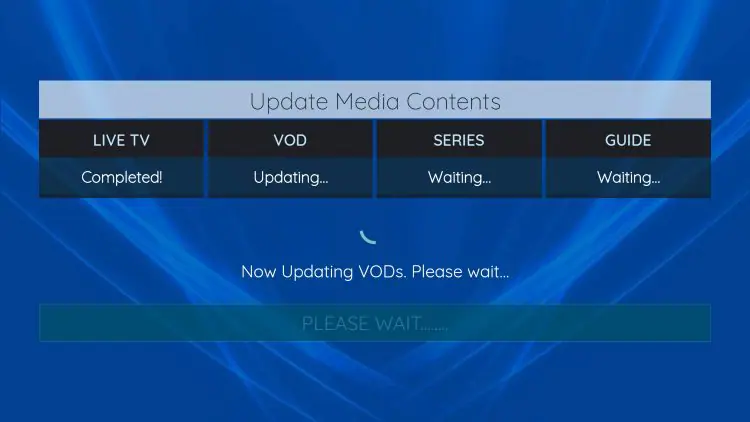
Wait 30 to 60 seconds for the channel list to fully load.
Don’t close or restart the app during the initial load.
The EPG (program guide) loads automatically alongside channels.
If channels don’t appear, manually trigger a Refresh Playlist option.
Browse through the categories to confirm everything is in place.
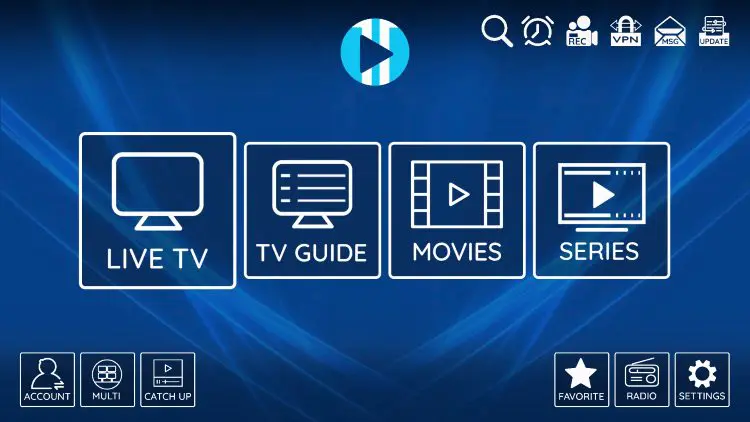
If the playlist remains empty after a full minute, the issue is almost always a typo in the URL, an expired subscription, or a temporary server issue on your provider’s end. Test the URL by pasting it into a web browser before assuming the app itself is the problem.
Step 6 — Test Channels and Customize Player Settings
Verify the setup and tailor XCIPTV to your preferences:
Open 3 to 4 channels from different categories (sports, news, kids).
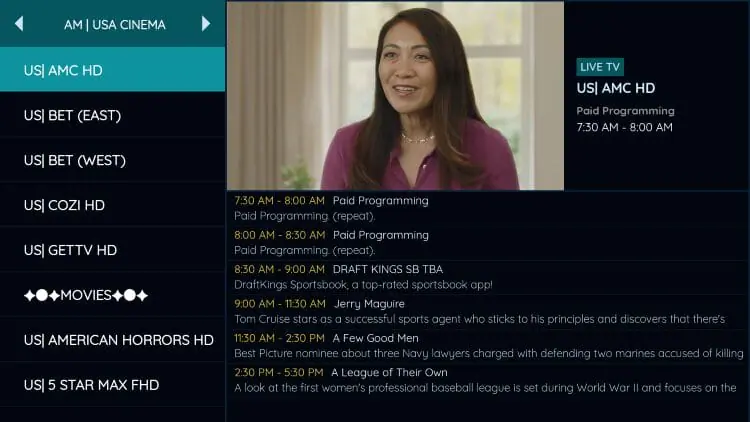
Confirm channels load within 3 seconds.
Test channel zapping speed, switching should feel instant.
Open the Settings menu and adjust the player engine (Native vs ExoPlayer).
Enable Hardware Acceleration for smoother 4K playback.
Set up parental controls if needed.
Test playback during peak hours (7 to 10 PM) for real-world stability.
If you encounter buffering or freezing on specific channels, switching the player engine often solves the issue. ExoPlayer handles modern streaming protocols better, while the Native engine offers broader codec support on older devices.
Conclusion
Configuring IPTV with XCIPTV Player is one of the more flexible setups, thanks to the app’s clean interface, multiple login methods, and broad device compatibility.
Whether you’re using Android TV, a Fire TV stick, or a mobile device, the process stays consistent: install, choose your login method, enter your credentials, and test. The whole flow takes less than 10 minutes once you have your IPTV provider’s URL or Xtream Codes ready.
The most important factor for long-term satisfaction isn’t the app or the device, it’s the IPTV service feeding the stream. XCIPTV running on a poor provider will still buffer; XCIPTV running on a stable, well-maintained service delivers smooth, reliable streaming for years.
Choose your provider for stability, transparent licensing, and active customer support, and XCIPTV will handle the rest cleanly.
Frequently Asked Questions
Is XCIPTV Player free to use?
Yes. XCIPTV is a free app available on the Google Play Store and through APK download for compatible devices. There’s also a paid pro version with extra features.
What devices support XCIPTV Player?
XCIPTV runs on Android TV, Fire TV, Android phones, and tablets. It does not natively run on Samsung Tizen TVs or Apple devices.
What’s the difference between Xtream Codes and M3U in XCIPTV?
Xtream Codes uses a server URL with username and password, auto-updating and richer in features. M3U is a static playlist URL, universal but less dynamic.
Why won’t XCIPTV load my channels?
The most common causes are a typo in the URL, an expired subscription, or your provider’s server being temporarily down. Verify the URL in a browser as a quick test.
Can I add multiple playlists to XCIPTV?
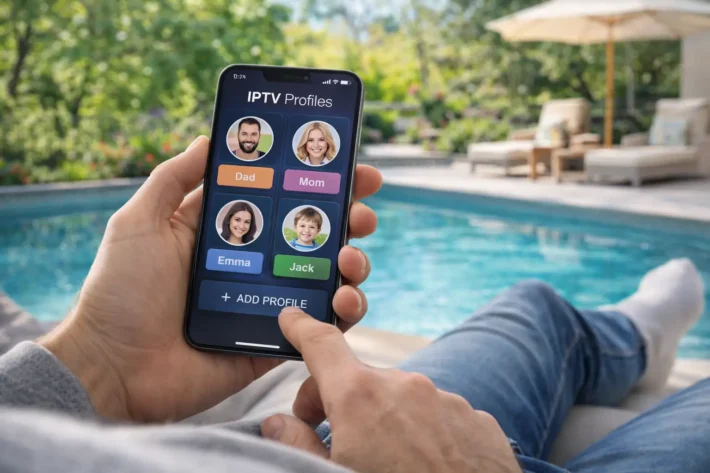
Yes. XCIPTV lets you add several user profiles, each with its own playlist or Xtream Codes credentials, and switch between them anytime.
Does XCIPTV support EPG and VOD?
Yes. XCIPTV fully supports EPG (program guide) and VOD (video on demand), with automatic loading when using Xtream Codes credentials from a compatible provider.
Should I use the Native or ExoPlayer engine in XCIPTV?
ExoPlayer is the better default for most modern streams. Native may handle older codecs better on some devices — switch between them if a specific channel won’t play.
How long does it take to configure XCIPTV Player?
The full configuration typically takes 5 to 10 minutes. This includes downloading XCIPTV from the Google Play Store, accepting the user agreement, choosing your login method, entering your IPTV credentials, and testing a few channels to confirm everything plays cleanly.
What’s the difference between XCIPTV Player free and the pro version?
The free version covers all essential IPTV features — playlist support, EPG, VOD, multi-user profiles, and custom player settings. The pro version removes ads, adds multi-screen support, includes additional themes, and offers priority updates. For most users, the free version is more than enough.
Can I install XCIPTV on a Fire TV Stick?
Yes. XCIPTV works smoothly on Fire TV devices, but it isn’t directly available on Amazon’s Appstore. You’ll need to sideload the APK using the Downloader app from Amazon’s Appstore, which lets you install XCIPTV from the official developer’s website.
Why does XCIPTV keep crashing on my device?
Crashing usually points to insufficient RAM, an outdated app version, or a corrupted cache. Open your device’s settings, clear XCIPTV’s cache and data, then reinstall the latest version. If the issue persists, try switching the player engine from ExoPlayer to Native or vice versa.
Does XCIPTV support 4K streaming?
Yes. XCIPTV fully supports 4K UHD streaming on capable devices. For smooth 4K playback, you’ll need a device with hardware acceleration, a stable internet connection of at least 50 Mbps, and an IPTV provider delivering true 4K streams (not upscaled HD).
Can I customize the XCIPTV interface and themes?
Yes. XCIPTV includes several built-in themes and layout options under Settings → Appearance. You can choose between grid view, list view, and category-based layouts. The pro version unlocks additional themes and color customizations for a more personalized look.
Why is my EPG not showing in XCIPTV?
This usually means the EPG URL wasn’t entered correctly, or your provider supplies it as a separate XMLTV link. Open Settings → EPG Settings, paste the XMLTV URL, and trigger a manual refresh. The EPG can take 30–60 seconds to fully load after the first sync.
Can I lock specific channels with parental controls in XCIPTV?
Yes. XCIPTV includes parental control features under Settings → Parental Control, where you can set a 4-digit PIN, block adult channels, and protect specific categories or content groups. Useful for households with children sharing the same device.